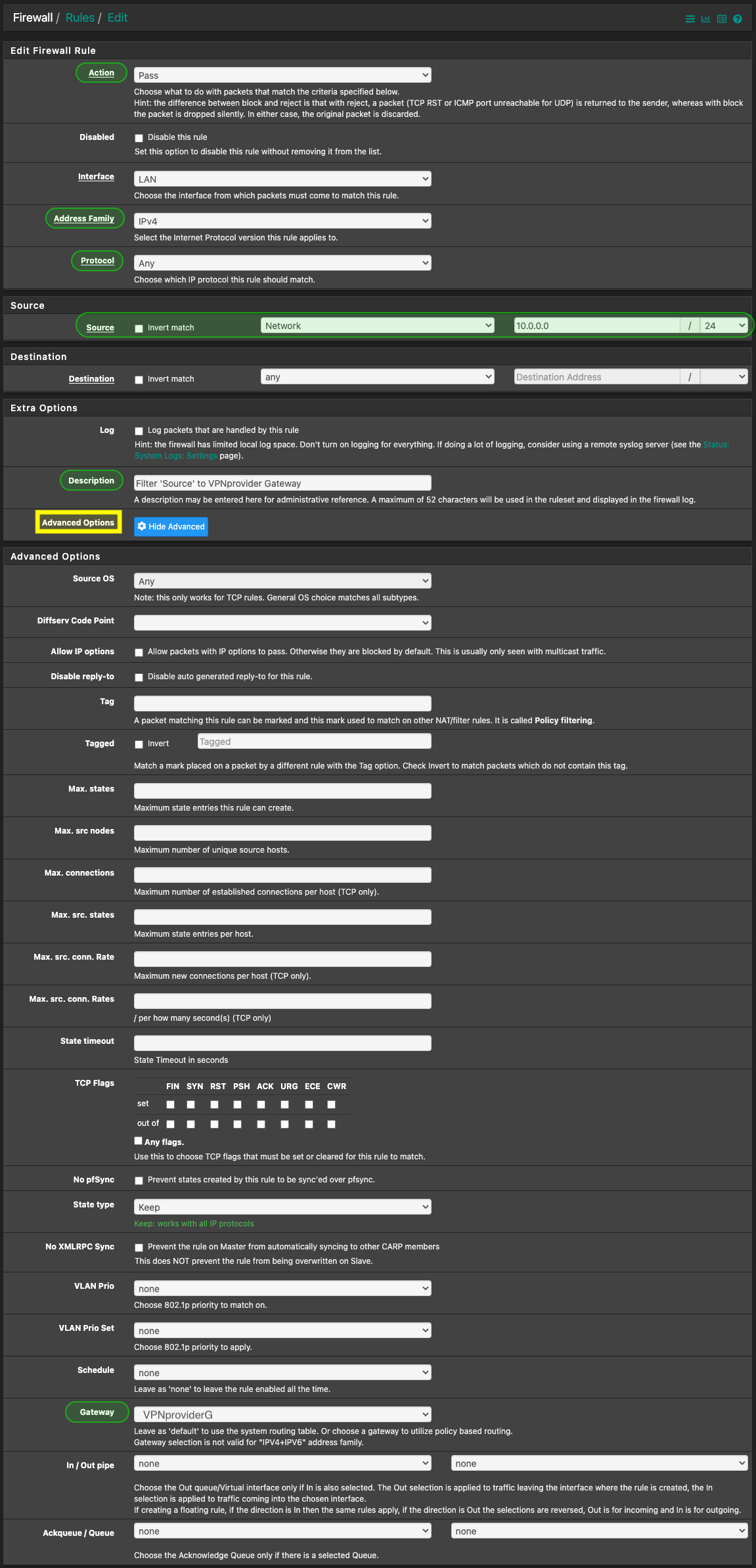
This guide will explain how to force an internal host to talk to the internet via a VPN tunnel.
¶ Create VPN Interface
1. After the VPN Client has been setup and is connecting correctly, it needs to be added as an interface.
To do this, navigate to Interfaces → Assignments
2. At the bottom of the existing interfaces, in the ‘Available network ports’ row, click the dropdown and select the ‘ovpnsX' instance that is the client you would like to move traffic across. Click ‘Add’.
3. The OpenVPN Client should appear in the list as an ‘OPTx’ interface. Select it.
4. Now on the interface configuration page, Enable the interface, give it a descriptive name, and, I suggest, enable ‘Block private networks and loopback addresses’ and ‘Block bogon networks’. Save the interface.
¶ Create New Gateway
¶ Create NAT rules
1. Navigate to Firewall → NAT → Outbound
2. Under ‘Outbound NAT Mode’, select ‘Hybrid Outbound NAT rule generation’ (Hybrid is the minimum requirement. If you run Manual mode, that works. Just cannot be Automatic).
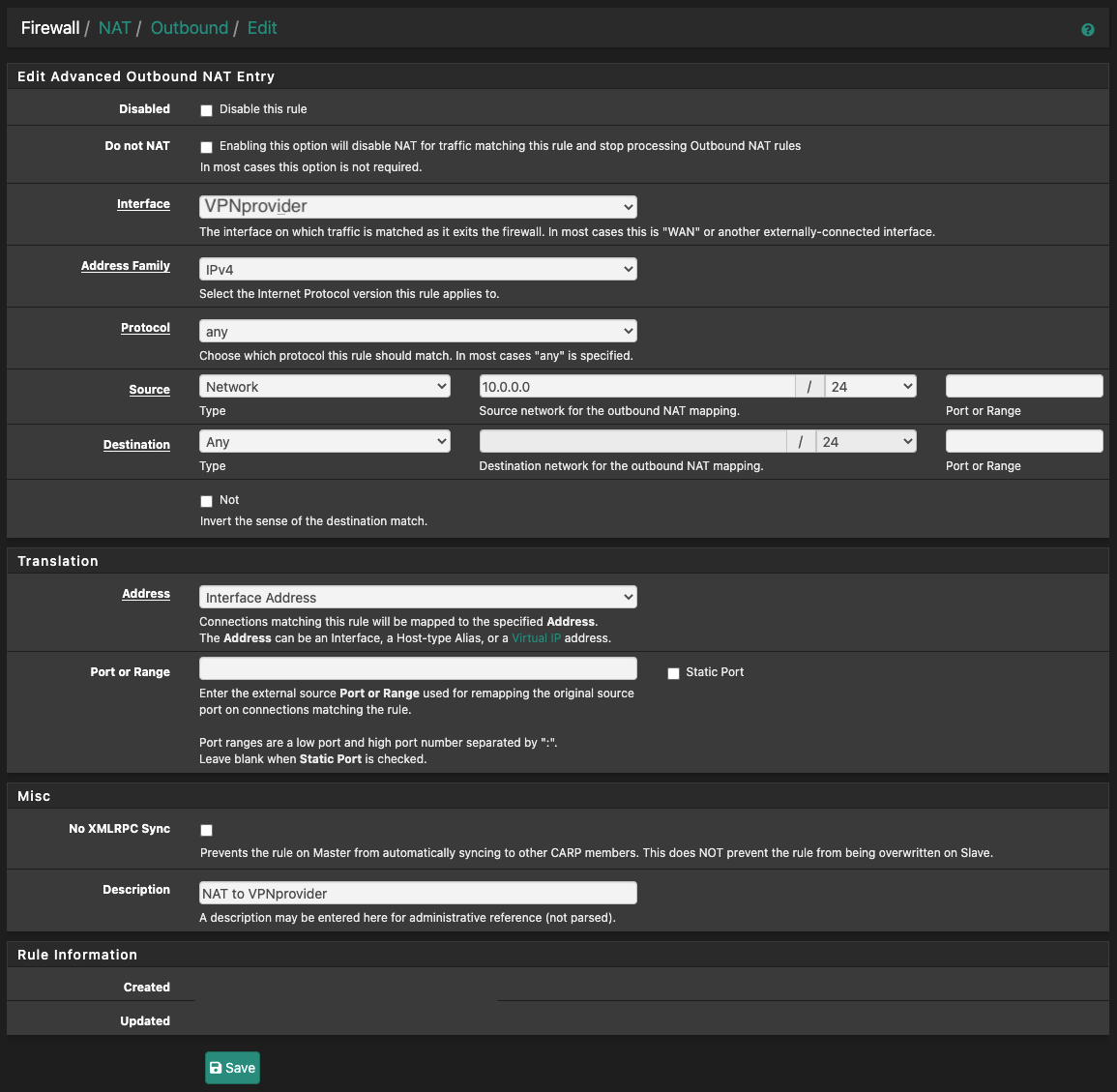
3. Add a new rule to the top that looks like this:
4. Then on TOP of that new rule, add this one:
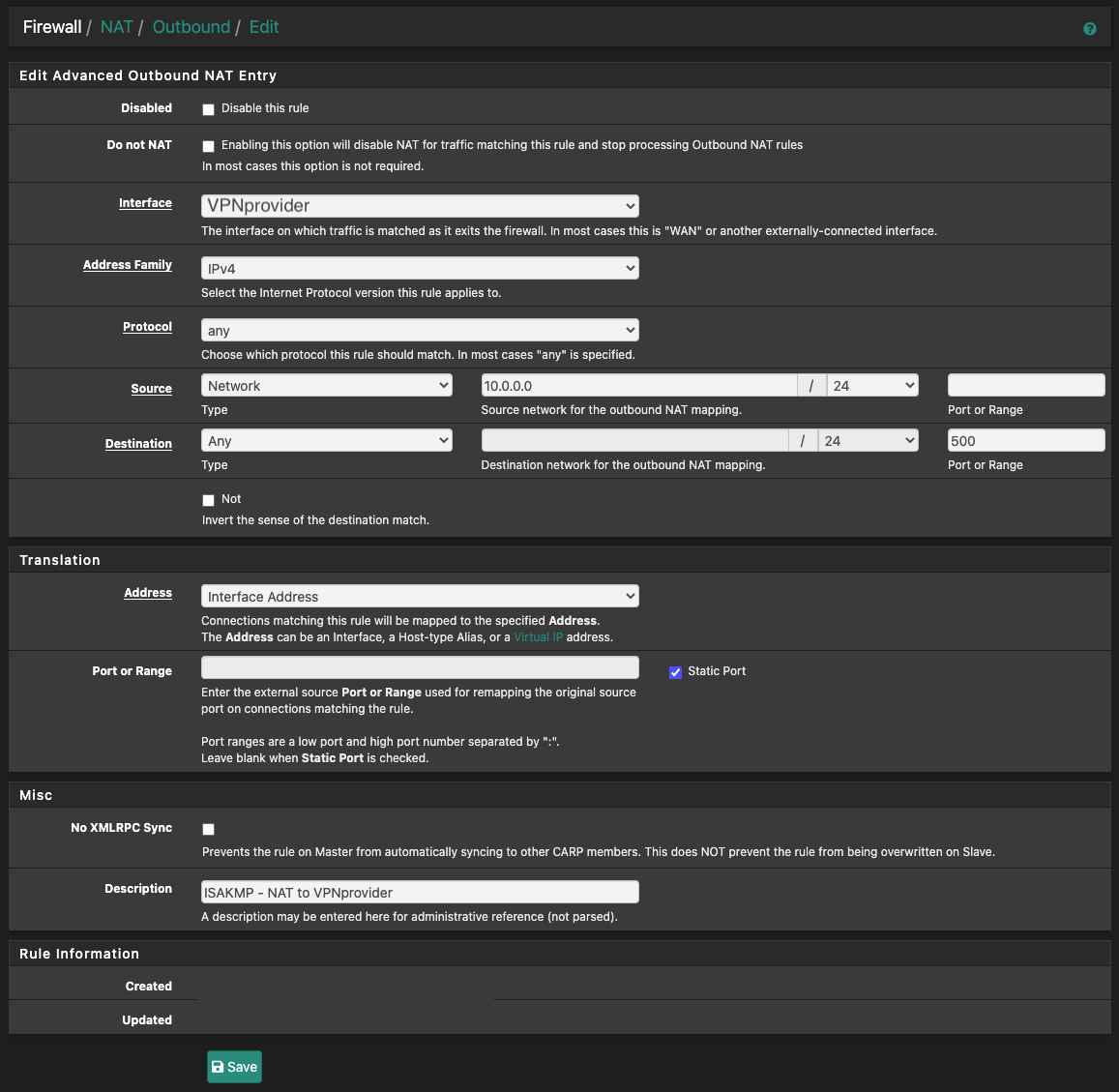
In this example, 10.0.0.0/24 will be NATed via pfSense's VPN tunnel IP address.
The interface in both rules should be set to the VPN interface that was created earlier.
¶ Create Firewall Rules
1. Navigate to Firewall → Rules → Select the interface that the host's data traverse
You could also do this with Floating rules.
Decide, depending on your current rule setup, where the new rules should be placed. At the very least, they should be placed above the rule that allows internet access (allow to any).
2. Create the first rule: